In Short
- Rythm commands now work only as Discord slash commands, not with the old prefix style like !play.
- Rythm split its commands into three permission levels: Everyone, DJ, and Admin.
- The rebuilt Rythm bot uses Discord's slash commands and not legacy prefixes.
- Rythm offers commands for playing music, queue management, and playback control.
- Rythm relaunched on Discord in 2024 with an optional paid subscription, available as a bot, Discord Activity, and web app.
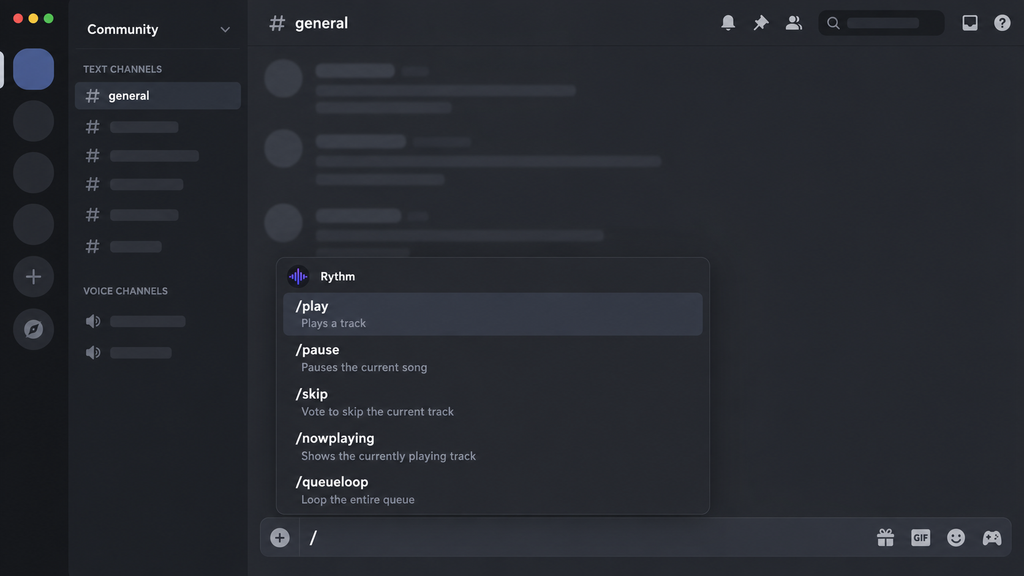
Rythm commands now work only as Discord slash commands. Type / in any text channel, pick a Rythm command from the menu, and press Enter. The ones most people need are /play to start a song, /skip to vote past it, /pause to stop it and /disconnect to send the bot away. The old !play style no longer works: Rythm’s own troubleshooting guide confirms the bot has dropped the legacy ! prefix.
This guide lists every command in Rythm’s official command documentation as of October 2026, grouped by task. It also explains who can run each one and the quirks that trip people up.
Why old Rythm commands like !play stopped working
Rythm was the largest music bot on Discord until September 2021. After receiving a cease-and-desist letter from Google over its use of YouTube, Rythm shut the bot down on 15 September 2021. At the time it was installed on around 20 million servers.
The service later returned in a licensed form. Rythm relaunched on Discord in 2024 with an optional paid subscription, with revenue shared with record labels and publishers. It is now available both as a Discord bot and as a Discord Activity (an app that runs inside a voice channel), plus a web app at app.rythm.fm.
The rebuilt bot uses Discord’s slash commands rather than typed prefixes. Guides that still tell you to type !play or !skip describe a bot that no longer exists in that form.
Who can use which Rythm commands
Rythm splits its commands into three permission levels, and knowing them saves a lot of confusion when a command silently fails.
- Everyone: basic commands such as
/play,/search,/nowplayingand the vote-based/skip. - DJ: commands that change playback or the queue for everyone, such as
/pause,/forceskip,/shuffleand/volume. Server admins assign the DJ role through/settings. - Admin:
/settingsitself, which needs the Manage Server permission.
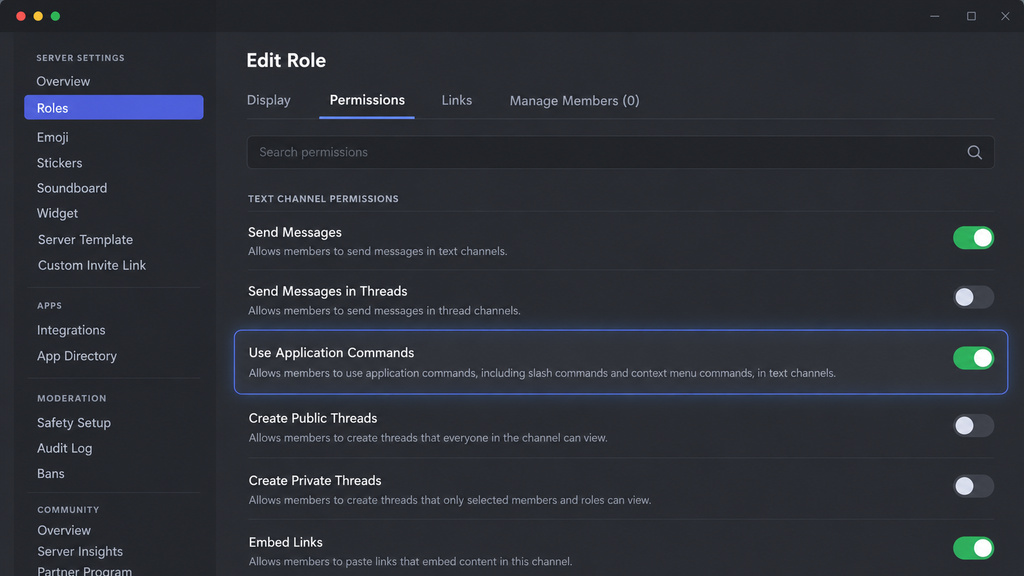
Anyone with the Manage Server permission automatically has DJ permissions too. To see Rythm’s commands at all, your role also needs Discord’s Use Application Commands permission.
Rythm commands for playing music
These are the commands you will use most often. Rythm accepts either a search term or a link: supported links are YouTube, YouTube Music, Spotify and SoundCloud, although Spotify and SoundCloud links work for individual tracks only.
| Command | Aliases | What it does | Permission |
|---|---|---|---|
/play <song> | /p | Searches for a song or plays a link, joining your voice channel if needed. With no song entered, it resumes paused music | Everyone |
/playtop <song> | /pt | Adds a song to position 1 so it plays next | Everyone |
/playskip <song> | /ps, /pskip, /playnow, /pn | Stops the current track and plays your request immediately | DJ |
/search <query> | None | Shows five results in a dropdown; a “Queue All” button adds several at once | Everyone |
/join | /summon, /start | Brings Rythm into your current voice channel | Everyone |
/pause | None | Pauses the track (or resumes it if already paused) | DJ |
/resume | None | Resumes paused music | DJ |
/nowplaying | /np, /current | Shows the current track, a progress bar and who added it | Everyone |
Rythm queue commands
Queue commands use a song’s position number, which you can see in the queue display. Position 1 is the next song to play, not the one currently playing.
| Command | Aliases | What it does | Permission |
|---|---|---|---|
/move <from> [to] | /m | Moves a song to a new position; with no target, it goes to position 1 | DJ |
/remove <position> | /rm | Removes the song at that position | DJ |
/skipto <position> | /st | Jumps straight to that position, skipping everything before it | DJ |
/clear | None | Empties the queue but keeps the current track playing | DJ |
/shuffle | None | Randomly reorders the queue | DJ |
/removedupes | /rmd, /rd, /drm | Deletes duplicate songs, keeping the first copy | DJ |
/leavecleanup | /lc | Removes songs added by people who have left the voice channel | DJ |
/queueloop | /qloop | Repeats the whole queue after the last song | DJ |
For example, /move 3 1 takes the song at position 3 and makes it the next one to play.
Rythm playback control commands
These commands control the track that is playing right now. Time-based commands accept several formats, so /seek 1:30, /seek 2m45s and /seek 3 minutes 10 seconds all work.
| Command | Aliases | What it does | Permission |
|---|---|---|---|
/skip | /voteskip, /s, /vs, /next | Starts or adds to a vote to skip the track | Everyone |
/forceskip | /fs, /fskip | Skips immediately, without a vote | DJ |
/seek <time> | None | Jumps to an exact point in the track | DJ |
/rewind <time> | /rwd | Moves back by a set amount, such as 30s | DJ |
/forward <time> | /fwd | Moves forward by a set amount, such as 1m | DJ |
/replay | None | Restarts the current track | DJ |
/loop | /repeat | Repeats the current track until turned off | DJ |
/volume [1-200] | /vol | Sets the volume; with no number, shows the current level | DJ |
/disconnect | /dc, /leave, /stop | Removes Rythm from the voice channel and clears the queue | DJ |
Settings, utility and personal commands
The remaining commands cover server setup, help and your own listening history. Your likes sync with your Rythm profile on its other platforms.
| Command | Aliases | What it does | Permission |
|---|---|---|---|
/settings | /setting | Configures the DJ role, song announcements and other server options | Admin |
/help | /aliases | Lists every command, with support and invite buttons | Everyone |
/start | None | Posts a guided tutorial with starter music | Everyone |
/ping | None | Shows the bot’s response time to Discord | Everyone |
/premium | None | Shows your Premium status and subscription options | Everyone |
/like | /heart, /love, /grab | Adds or removes the current track from your liked songs | Everyone |
/liked | /likes, /favorites, /favourites | Shows your liked songs playlist | Everyone |
/history [guild] | /hist, /recent | Shows your recent tracks, or the server’s with /history true | Everyone |
Note that /start appears in the documentation both as its own tutorial command and as an alias of /join. In practice, the command menu shows you which one you are selecting. [VERIFY: test what /start does in a live server and update this note]
Old Rythm commands and their current equivalents
If you learned Rythm before 2021, this table maps the commands you remember to the ones that work today. Most kept their names and simply moved from ! to /.
| Old command | Current command | What changed |
|---|---|---|
!play | /play | Same job; Spotify and SoundCloud now limited to single tracks |
!skip | /skip or /forceskip | /skip is now a vote; DJs use /forceskip to skip instantly |
!np | /nowplaying (/np) | Same job |
!summon / !join | /join (/summon) | Same job |
!loop | /loop | Same job, DJ only |
!loopqueue | /queueloop | Renamed |
!dc / !disconnect | /disconnect (/dc) | Also clears the queue |
!effects, !bassboost | No slash command listed | Audio effects are now part of Rythm Premium’s Audio Effects Studio |
!settings prefix | Not applicable | Slash commands have no prefix to change |
Rythm’s current command list does not include a standalone queue-viewing command such as /queue. [VERIFY: check whether queue view is now handled through buttons or the Activity interface before publishing]
Three Rythm commands that do not do what you expect
/stop is not a pause button. It is an alias of /disconnect, so it kicks Rythm out of the voice channel and wipes the queue. Use /pause if you only want a break.
/skip needs a majority. Rythm requires votes from half the people in the voice channel, rounded up and not counting the bot. With five listeners, three must vote. If you are alone, the song skips instantly.
/skipto can delete songs. With queue loop turned off, every song you jump past is removed permanently. With /queueloop on, those songs move to the end of the queue instead, so turn on queue loop first if you want to keep them.
Why Rythm is not responding to your commands
If you type a Rythm command and nothing happens, work through these checks in order. They come from Rythm’s own troubleshooting guide.
- Check that Rythm is online. If the bot shows as offline in the member list, Rythm may be having an outage. Its support server on Discord is the place to report it.
- Use
/, not!. Typing!playproduces no response because the prefix is no longer supported. - Check your role permissions. If Rythm’s commands do not appear when you type
/, your role needs the Use Application Commands permission. Ask a server admin to enable it. Discord’s slash commands FAQ explains how these permissions work. - Turn off the legacy chat input. In Discord, go to Settings, then Appearance, and disable “Use the legacy chat input”, which hides the slash command menu.
- Fix blank messages. If Rythm replies with empty messages, open User Settings, then Chat, and enable showing embeds and link previews.
Frequently asked questions about Rythm
Yes, the core bot is free. Rythm Premium is an optional subscription that adds 320kbps audio, crossfade between tracks, an Audio Effects Studio with bass boost and nightcore, unlimited autoplay and unlimited queue length. Premium perks apply to the whole listening session while the subscriber is present, so one subscriber upgrades the experience for everyone in the channel.
Yes. As of October 2026, Rythm runs as a Discord bot using slash commands and as a Discord Activity inside voice channels. It is a different service from the bot that shut down in 2021, now operating with an optional subscription that shares revenue with record labels and publishers.
Not through /play. Rythm’s documentation lists Spotify and SoundCloud links as supported for individual tracks only. YouTube and YouTube Music links are supported without that restriction noted. To queue several songs at once, use /search and its “Queue All” button.
Rythm says the Activity may be blocked in some countries while it expands to new regions. If the Activity does not appear, the bot’s slash commands may still work in your server.
If Rythm’s commands still appear after you remove the bot from a server, you have probably added Rythm to your personal Discord profile. Open Discord’s settings, go to “Authorized Apps” and deauthorise Rythm.
Getting started in three commands
For most servers, Rythm comes down to three steps. Join a voice channel, run /play with a song name, then give trusted members a DJ role through /settings so they can pause, reorder and skip without a vote. Everything else in the lists above refines that basic loop. If you manage a busy server, pairing a music bot with a levelling or economy bot is common; our Tatsumaki Discord bot commands list covers one popular