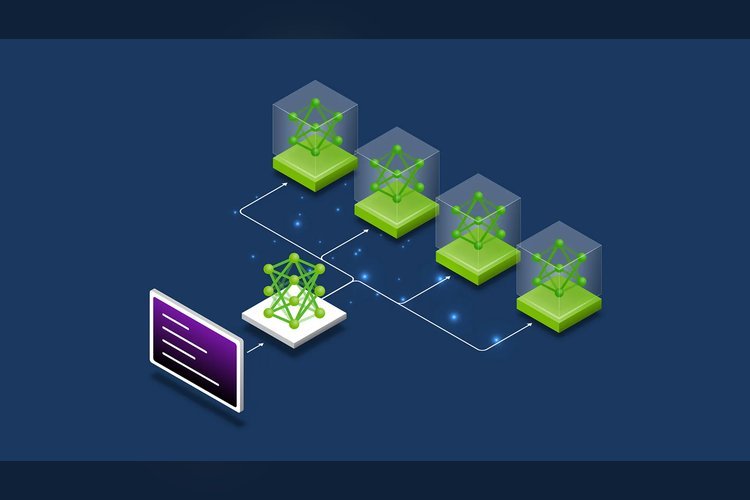
NVIDIA Cosmos 3 Nano can now run on a consumer GPU with as little as 12 GB of VRAM. A streaming adapter for Hugging Face Diffusers keeps most model weights in system RAM and moves them to the GPU as they’re needed. Cosmos 3 is an open world foundation model that generates video from text, images and other inputs for physical AI work.
The tradeoff is real. The approach needs more system RAM and more PCIe traffic, it won’t give interactive latency, and it doesn’t stream weights directly from disk during inference.
What you need
NVIDIA’s setup uses Linux with Python 3.12 and a CUDA-enabled PyTorch build that matches your GPU. The tested consumer hosts had about 128 GB of system RAM, but that figure is not a measured minimum.
The offloading package lives in the cosmos-framework repository under packages/diffusers-cpu-offloading, and installs with uv. A build_pipeline call takes the Hugging Face repository ID, nvidia/Cosmos3-Nano, and downloads the checkpoint on first load. Safety checking is on by default.
Generating a first video
The baseline uses BF16 weights and PyTorch scaled dot-product attention, which was used on all four tested GPUs. The sample request makes 189 frames at 720p and 24 fps over 35 inference steps with a guidance scale of 6.0. On a 12 GB card, NVIDIA suggests dropping to 480 by 848 or 240 by 432 for quicker iteration.
The example prompt is a JSON scene description, such as a robot arm working in a kitchen. The result exports to MP4 with the Diffusers export_to_video helper.
How the weight streaming works
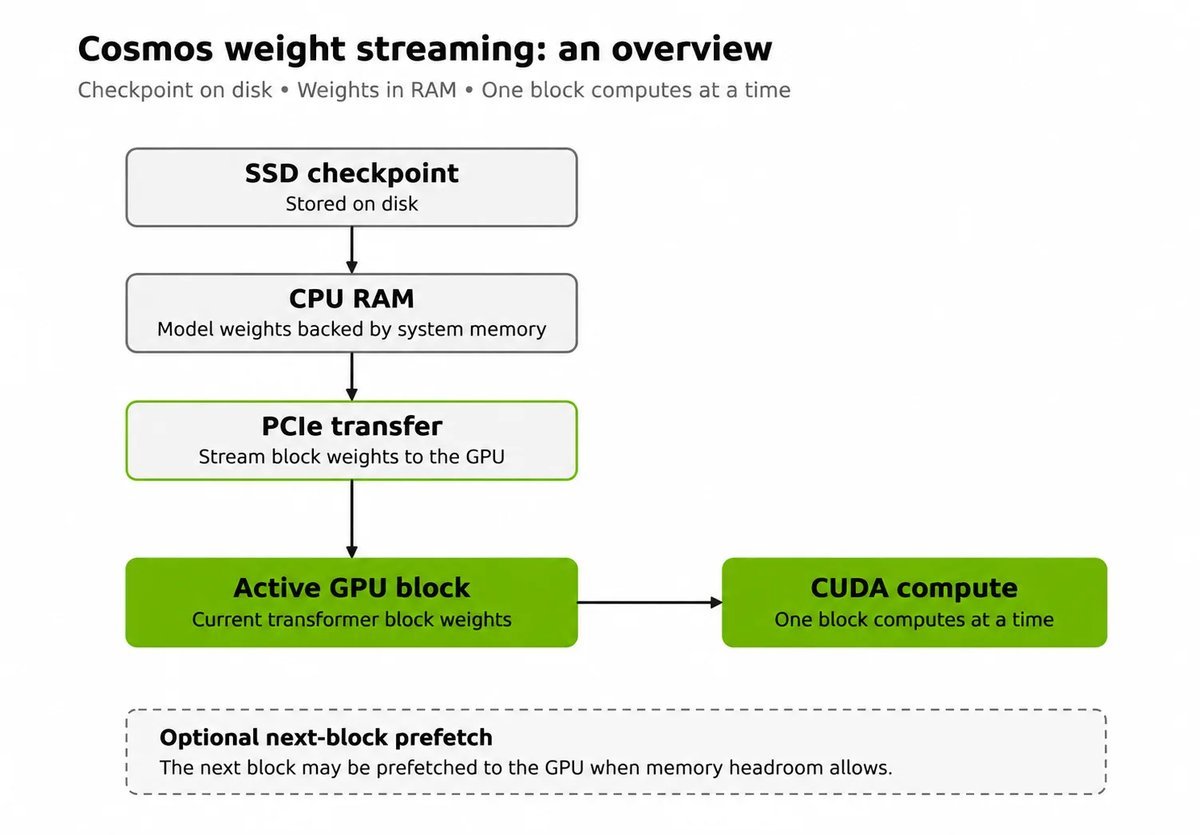
System RAM acts as the backing store for weights that aren’t on the GPU. The next transformer block moves over when it’s required, every matrix multiplication and attention operation runs on CUDA, and the adapter handles memory for denoising, the VAE and safety checking. A fast SSD speeds up model loading, while enough RAM and PCIe bandwidth matter during generation.
Cosmos 3 has two pathways inside its transformer. The understanding pathway interprets the prompt and other conditioning inputs, which stay fixed. The generation pathway processes the changing video, sound or action representation at each denoising step. The adapter computes the understanding context once and reuses it, refreshing it only if native FP8 precision changes during denoising.
A 35-step request passes through 36 transformer blocks per step. The adapter reuses each streamed block across the guidance predictions rather than transferring its weights for each branch. When the GPU has headroom, the next block starts moving while the current one computes. Larger workloads switch to a lower-memory schedule automatically, and there is no transfer schedule for users to set.
The adapter keeps the official Diffusers modular pipeline for prompt processing, the UniPC scheduler, guidance handling, VAE decode, safety checking and output conversion. It manages VAE and safety phases separately, since their memory needs differ from denoising.
Other modalities and FP8
The same API handles image-to-video, video-to-video, sound, action and Transfer inputs. Transfer does more guidance work than text-to-video, so at 720p on a 12 GB card the adapter picks a lower-memory mode on its own.
A dedicated FP8 checkpoint lives on the repository’s fp8 branch and needs the fp8 extra, which brings in NVIDIA Model Optimizer. It uses W8A16 for the first three and last three denoising steps and W8A8 for the middle ones. Attention stays in BF16, so the entire pipeline doesn’t run in FP8.
Benchmarks and what to try
NVIDIA’s benchmarks cover text-to-video on four GeForce RTX cards and all seven modalities on a 12 GB RTX 5070. They are single runs and not a controlled GPU ranking or a multiseed comparison of BF16 and FP8. Results depend on host, software revisions, safety settings, frame count and PCIe bandwidth. The benchmark scripts, benchmark_bf16.py and benchmark_fp8.py, let you measure your own machine.
A sensible starting point is the BF16 text-to-video example at 240p or 480p. From there you can move to image and video conditioning, sound, actions, control inputs and the FP8 checkpoint.
Source: NVIDIA Technical Blog