In Short
- Google AI Overviews are AI-generated answer boxes that appear at the top of Google Search results, powered by Gemini AI.
- Users want to remove AI Overviews due to inaccurate information, taking up screen space, blocking source websites, slowing down results, and trust issues with AI-generated summaries.
- One method to remove AI Overviews is to use the Google "Web" filter without the need for extensions or third-party tools.
- Another method is to add "&udm=14" to the Google Search URL to force traditional web results without the AI Overview, which can be bookmarked for easier access.
- Using the Web filter on desktop or mobile, or adding "&udm=14" to the URL, can effectively remove AI Overviews from Google Search.
If you have searched something on Google recently, you have probably noticed a large AI-generated box appearing at the very top of the results page. This is Google’s AI Overview, an automated summary powered by Google’s Gemini AI. While Google designed it to save time, millions of users find it inaccurate, distracting, and simply in the way. The good news? There are several working methods to remove AI Overviews from Google Search right now. In this guide, we will walk you through every method step by step so you can take back your clean search experience.
What Are Google AI Overviews?
Google AI Overviews (previously called Search Generative Experience or SGE) are AI-generated answer boxes that appear at the top of Google Search results. Powered by Gemini, Google’s large language model, they attempt to summarize an answer to your query before you even scroll down to actual websites.
Google started rolling out AI Overviews globally in May 2024 and, by early 2026, they appear for a wide range of queries, from simple factual questions to complex how-to guides. The feature is now active for users in over 100 countries, including India, the US, and the UK.
Why Do People Want to Remove AI Overviews from Google Search?
There are plenty of valid reasons why users want to remove AI Overviews from Google Search. Here are the most common complaints:
- Inaccurate answers: AI Overviews have been caught giving factually wrong information, including dangerous health advice and made-up citations.
- They take up too much screen space: The AI box can push actual search results far down the page, forcing users to scroll unnecessarily.
- They block source websites: Many users prefer visiting the original source rather than reading a summarized version from an AI.
- They slow down the results page: On mobile and slower connections, AI Overviews can noticeably delay page load.
- Trust issues: A lot of people simply do not trust AI-generated summaries for important topics like medical, legal, or financial queries.
Whatever your reason, the five methods below will help you remove or disable AI Overviews from Google Search effectively.
Method 1: Use the Google “Web” Filter to Hide AI Overviews
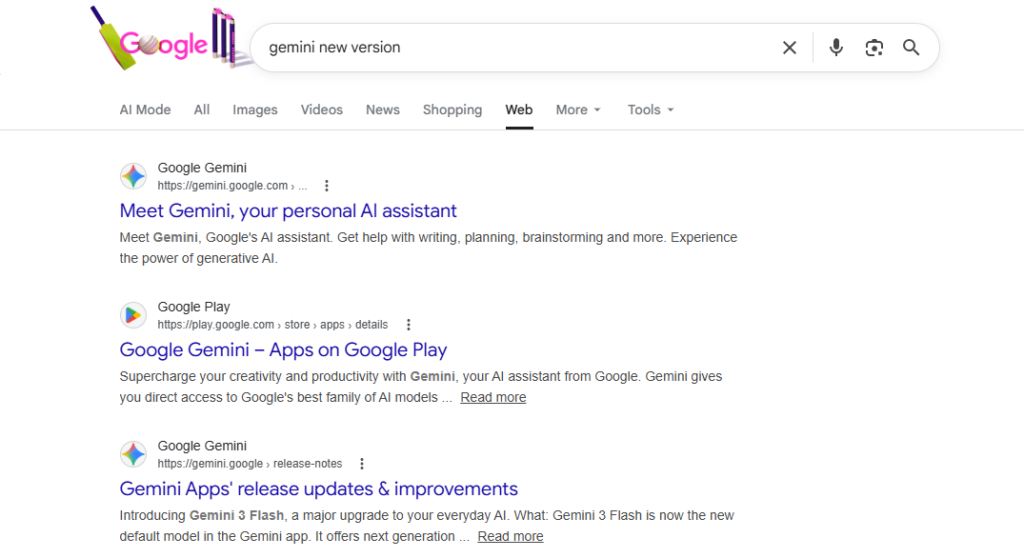
This is the simplest and most reliable method to remove AI Overviews from Google Search, no extensions or third-party tools required. Google quietly added a “Web” filter to its search results tab bar, and switching to it removes the AI Overview box entirely.
Steps to Use the Web Filter on Desktop:
- Open google.com in your browser and type your search query.
- Look at the row of filter tabs below the search bar, you will see options like All, Images, Videos, News, Shopping.
- Click More at the end of that row.
- Select Web from the dropdown menu.
- Your results will instantly reload, with no AI Overview box at the top.
Steps to Use the Web Filter on Mobile (Android & iPhone):
- Open the Google app or Chrome browser and run a search.
- Scroll the filter tab bar horizontally to the right.
- Tap Web if it appears, or tap More to reveal it.
- The AI Overview will disappear from the results.
Note: This Web filter setting does not persist between sessions. You will need to click it every time you run a new search. For a permanent solution, see Method 2 or Method 3 below.
Method 2: Add “&udm=14” to the Google Search URL
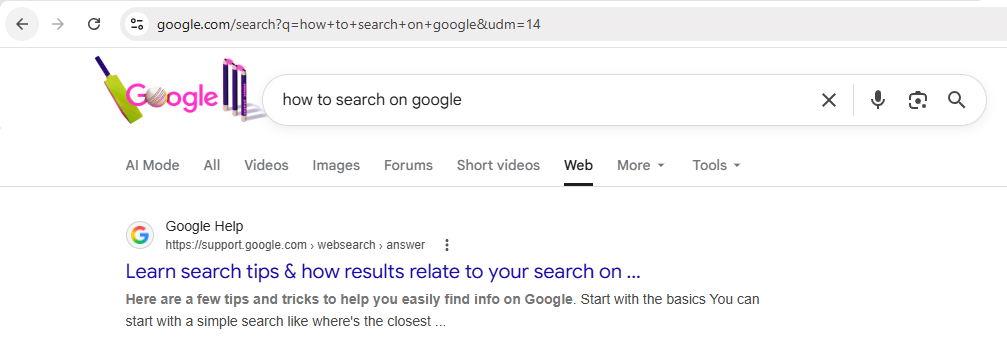
This method is a clever URL trick that forces Google to show traditional web results without the AI Overview. When you append &udm=14 to any Google search URL, it automatically activates the Web filter we discussed in Method 1, and you can even bookmark it for faster access.
How to Use the udm=14 Parameter:
- Go to Google and search for anything.
- Look at the URL in your browser’s address bar. It will look something like:
https://www.google.com/search?q=your+search+query - Click the address bar and add
&udm=14at the very end of the URL. - Press Enter.
- The AI Overview will be gone and only classic web results will show.
Make It Permanent with a Custom Search Engine in Chrome:
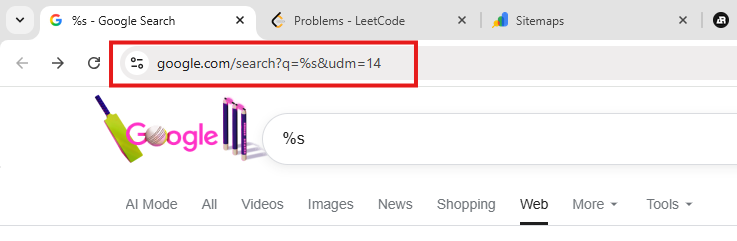
You can make this method automatic by setting up a custom search engine in Chrome so that every Google search you perform automatically adds &udm=14:
- Open Chrome and go to Settings (three-dot menu → Settings).
- Click Search engine in the left sidebar.
- Click Manage search engines and site search.
- Under Site search, click Add.
- Fill in the fields:
- Name: Google (No AI)
- Shortcut: g
- URL:
https://www.google.com/search?q=%s&udm=14
- Click Save, then click the three-dot menu next to your new entry and select Make default.
From now on, every search you type in Chrome’s address bar will automatically skip the AI Overview. This is arguably the best permanent solution for desktop users.
Method 3: Use a Browser Extension to Block AI Overviews
If you want a truly hands-off, automated solution to remove AI Overviews from Google Search, a browser extension is the way to go. Several extensions have been built specifically for this purpose.
Option A: “Hide Google AI Overviews” Extension (Chrome)
- Open the Chrome Web Store and search for “Hide Google AI Overviews”.
- Click Add to Chrome on the extension by the verified developer.
- Confirm by clicking Add extension.
- That’s it. From this point on, every Google search will automatically hide the AI Overview box. No setup needed.
Option B: uBlock Origin (Chrome, Firefox, Edge)
If you already use uBlock Origin, one of the most popular ad blockers, you can add a custom filter rule to block AI Overviews:
- Click the uBlock Origin icon in your browser toolbar.
- Click the Dashboard icon (gear/cog icon).
- Go to the My filters tab.
- Paste the following filter rule on a new line:
www.google.com##div[data-initq]:has(sg-expansion-button) - Click Apply changes.
- Run a Google search, the AI Overview should now be blocked.
Tip: Filter rules may need occasional updating as Google changes its HTML structure. Check tech forums for the latest working rule if the one above stops working.
Method 4: Switch to a Different Search Engine (Permanently)
If you are fed up with Google pushing AI results on you and want a long-term fix, switching to a search engine that does not use AI Overviews is the most permanent way to remove AI Overviews from Google Search, by simply not using Google at all for daily searches.
Here are the best alternatives:
- DuckDuckGo: Privacy-focused, no AI Overview boxes, clean results. Available at duckduckgo.com.
- Brave Search: Independent index, no AI clutter by default, excellent for privacy-conscious users.
- Kagi: A paid search engine (~$5/month) that offers clean, AI-free results with excellent quality. Preferred by power users.
- Startpage: Pulls Google results but strips all the extras including AI Overviews. Best of both worlds if you want Google’s index without the AI box.
To change your default search engine on Chrome, go to Settings → Search engine → Search engine used in the address bar and choose your preferred alternative.
Method 5: Turn Off “AI Overviews and More” in Google Search Labs
Google originally tested AI Overviews as an opt-in feature through Search Labs. While it is now enabled for everyone by default, you may still have the option to adjust it via Search Labs, depending on your region and Google account settings.
How to Check and Disable via Search Labs:
- Go to google.com and make sure you are signed in to your Google account.
- Click the Labs beaker icon (🧪) at the top-right corner of the Google search results page. If you do not see it, go directly to labs.google.com/search.
- Look for the toggle labeled “AI Overviews and more”.
- Toggle it OFF.
- Run a new search, the AI Overview should no longer appear.
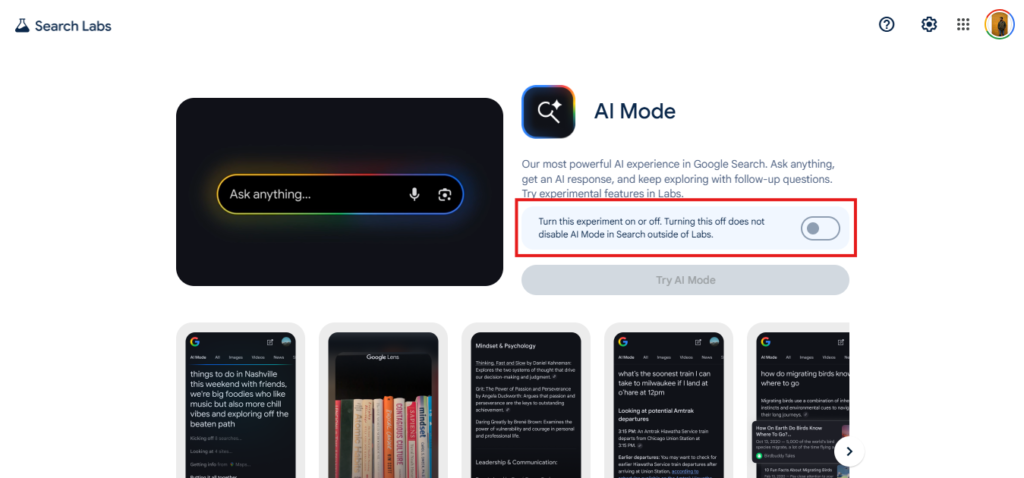
Important: This option may not be available in all countries or for all Google accounts. If you do not see the Labs icon or the toggle, use Methods 1–4 instead. Google has also been gradually removing the ability to turn off AI Overviews in some regions as the feature becomes a core part of Search.
How to Remove AI Overviews from Google Search on Mobile
Removing AI Overviews on Android and iPhone is slightly different since browser extensions are not available on mobile browsers. Here are the best options for mobile users:
- Use the Web filter tab: Just as on desktop, tap More → Web in the Google app or Chrome to hide AI Overviews for that search.
- Use the udm=14 trick: Manually add
&udm=14to your search URL in the mobile browser address bar. - Switch to Firefox on Android: Firefox for Android supports extensions, including uBlock Origin, which can block AI Overviews using the custom filter method described above.
- Use an alternative search engine app: Switch to DuckDuckGo or Brave Search as your default browser and search engine on mobile for a fully AI-Overview-free experience.
Comparison: Which Method Is Best for You?
| Method | Permanent? | Works on Mobile? | Technical Skill Needed |
|---|---|---|---|
| Web Filter Tab | No (per search) | Yes | None |
| udm=14 URL Trick | Yes (via custom engine) | Partially | Low |
| Browser Extension | Yes | Firefox only | Low |
| Switch Search Engine | Yes | Yes | None |
| Search Labs Toggle | Yes (if available) | Yes | None |
Comparison of all methods to remove AI Overviews from Google Search
Will Google Ever Let You Officially Disable AI Overviews?
This is a question many users are asking. Currently, Google does not offer a simple, official toggle to permanently remove AI Overviews from Google Search for all users. Google has stated that AI Overviews are central to the future of Search and generate higher user satisfaction scores, according to their own internal data.
However, user feedback has been strong enough that Google has already made some changes. In response to criticism, Google began reducing AI Overviews for certain types of queries (like news and health-sensitive topics) in late 2024. There is a real possibility that Google may introduce an opt-out option in the future, but for now, the methods in this guide are your best options.
Frequently Asked Questions (FAQs)
Can I permanently remove AI Overviews from Google Search?
Yes, the most reliable permanent methods are setting up the udm=14 custom search engine in Chrome or installing a dedicated browser extension. The Web filter tab method works but must be clicked with every new search.
Does the Web filter method work on the Google app?
Yes, the Web filter tab is available in both the Google app and the Chrome mobile browser. Scroll the search tabs horizontally and tap “Web” or find it under “More.”
Is it safe to use browser extensions to block AI Overviews?
Yes, as long as you use trusted, well-reviewed extensions from the official Chrome Web Store or Firefox Add-ons site. Stick to established extensions with thousands of verified users and positive reviews.
Why did Google add AI Overviews to Search?
Google added AI Overviews to compete with AI-powered search tools like Perplexity AI, ChatGPT Search, and Microsoft Copilot. The goal is to keep users on Google for longer by answering queries directly, rather than having them click through to other websites.
Does removing AI Overviews affect my other Google Search features?
No. Using the Web filter or the udm=14 trick only removes the AI Overview box. All other features, images, shopping results, People Also Ask boxes, and featured snippets, remain unaffected.
Why does the AI Overview sometimes show wrong information?
AI Overviews are generated by a language model that predicts text based on patterns from billions of web pages. It does not actually verify facts the way a human researcher would. This means it can confidently state incorrect information, a problem known as “AI hallucination.”
Conclusion
Google’s AI Overviews are here to stay, at least for now, but that does not mean you have to put up with them. Whether you want a quick fix using the Web filter tab, a permanent desktop solution using the udm=14 custom search engine trick, or a fully automated solution with a browser extension, there is a method in this guide that works for you. Mobile users are not left out either, switching to Firefox with uBlock Origin or an alternative search engine like DuckDuckGo gives you a completely AI-Overview-free experience on your phone too.
The methods above have been tested and verified as of February 2026. If Google changes something in the future, we will update this guide accordingly. If you found this article helpful, share it with a friend who is also tired of those AI answer boxes cluttering their search results.