Canva generative AI controls are rolling out to Free and Pro users, letting them hide the app’s generative AI features and cut back the amount of AI-made content in search results and recommendations. Both settings cost nothing and can be turned on or off at any time.
The move follows growing pushback from users who want a say in how AI shows up in the software they use, or whether it shows up at all.
The two new controls
The first of the Canva generative AI controls is a master switch for generative AI features. When it’s off, supported features are hidden across Canva. You can bring them back whenever you like. To find it, open Profile, then Settings, then Permissions, and toggle the option labeled to enable generative AI features.
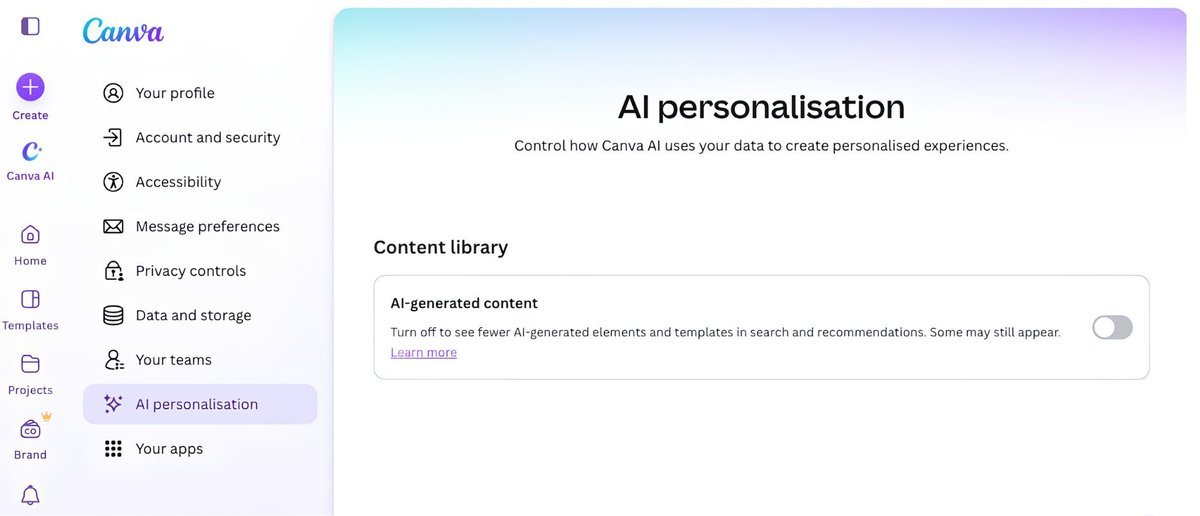
The second affects what you see while browsing. It tells Canva to show less AI-generated content in its library, without changing any design you’ve already made. You’ll find it under Profile, then Your account, then AI personalization, where you can choose to show less AI-generated content.
Canva says the library question comes straight from its community. A small portion of the library is AI-generated content made by Canva itself, including some abstract backgrounds and illustrated graphics. Users have asked for an easier way to find assets made by real people. The content control reduces the number of AI-generated templates and elements in search results and recommendations.
What stays available with AI features off
Turning the switch off doesn’t remove everything that uses machine learning. Canva says some everyday editing tools use AI to make simple tasks faster without generating anything new. Two examples are Background Remover, one of its most popular tools, which lifts a subject out of a photo in one click, and Magic Grab, which lets you select an object in an image and move it elsewhere in the design.
Both stay on when the generative AI switch is off, because they work only with what’s already in a design. For the same reason, they don’t add an AI label to a design’s metadata. Canva reserves that label for AI-generated content.
Canva’s stated position
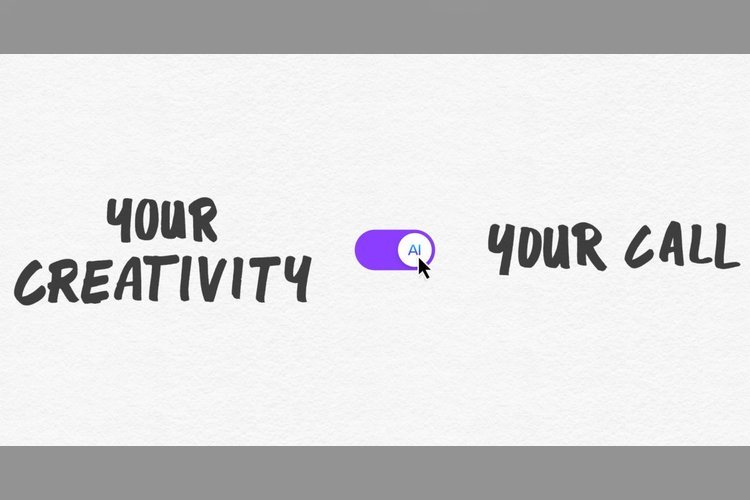
The company says it knows users disagree about whether AI belongs in creative work, and that it considers both views valid. It framed the launch with a line that “the future of creativity isn’t a choice between AI and no AI,” and said it isn’t its place to tell anyone how to create.
Canva described the two controls as putting that decision with its community. In practice, that means a user who dislikes AI imagery can remove the prompts and buttons for it, while someone who uses those features daily sees no change.
How the Canva generative AI controls fit with admin settings
Canva already offered AI permissions to administrators of Business, Enterprise, Teams and Education accounts. Those let an organization control how its people use AI. The new options extend a version of that control to individuals on Free and Pro plans, who previously had no equivalent switch.
The difference matters for freelancers, students and small creative teams. Many of them work on personal accounts and may have client or school rules about AI-generated material. A single toggle makes it easier to keep AI features out of a workspace, and the library setting helps when the goal is to source assets made by people.
What to check after you switch
If you turn the generative AI switch off, expect the generation features to disappear from menus, while tools such as Background Remover and Magic Grab remain. If you enable the library setting, search results should show fewer AI-generated templates and elements, though Canva hasn’t said the content will vanish entirely, only that the number shown will go down.
Existing designs aren’t touched by either setting. Canva also hasn’t said anything about changing the controls later, so the options as described today are what users get at launch. Anyone who wants to review them can follow the menu paths above and test the effect in a search for templates.
Source: 9to5Mac